Skip to content

CMHC SELECTS BALANCED+FOR ITS SOFTWARE DEVELOPMENT

FOR IMMEDIATE RELEASE

Toronto, ON BALANCED+ has been awarded a multi-year contract for software development services for the Canadian federal government. The work will be carried out for a division of CMHC and will involve bothmaintenance of existing software applications and the development and improvement of these applications.

CMHC is Canadas largest crown corporation with assets of over CA$250 billion. It provides mortgage liquidity, affordable housing development, and advice to the housing industry. 

BALANCED+ prevailed in winning the project against several larger software development firms. The governments evaluation team noted that BALANCED+ was chosen from this competitive field based on our experience with building similar applications, our strong development team, a demonstrated focus on process optimization, and superior testimonials provided by our references.

Congratulations to BALANCED+ for being chosen the most skilled team to work for CMHC!

Contact

Artemy Kirnichansky

Phone: +1 (416) 621-6611

Email: Artemy.Kirnichansky@balanced.plus

Mastering Microsoft Teams

Overview

Microsoft Teams has rapidly become one of the most popular business chat platforms. Its ease of use and comprehensive features have made it an invaluable tool for companies looking to streamline communication and collaboration.

If you’re new to Teams or simply want to master its full potential, you’ve come to the right place. In this directory, we’ve compiled the most important tutorials that will help you get the hang of Microsoft Teams in no time. From setting up your account and navigating the interface to utilizing advanced features, these tutorials will ensure that you’re leveraging the platform to its fullest capacity.

Getting to know teams

Below we’ve curated the most important tutorials, and blogs from Microsoft simply watch and read all the posts in order!

ItemDurationAdditional Resources
WelcomeWhat is Teams?
Teams for Frontline Workers
Get started with Microsoft Teams
Set Up Teams on Mobile
0:55
3 min read
1:30
2 min read

Download Teams for Windows


Quick Start Guide
Collaboration
Overview of Teams and Channels
Create a Channel
Work in Channels
1:27
0:51
2:03
Tips for Teams Meetings
What is a Channel?
Meetings
Join a Teams Meeting
Manage Meetings
Upload and Share Files
Meeting Controls
1:35
1:43
1:07
4 min read
Show Your Screen During a Meeting
Join a Meeting on the Go
Record a Meeting
Calls
Overview of Teams Calls
Make Calls with Teams
Answer Calls
Add Someone to a Call
Transfer a Call to Another User
Check Your Voicemails
View Call History
1:54
1:32
1 min read
1 min read
2 min read
2 min read
2 min read

Tips for Teams Calls
Call Forwarding to a Delegate
Microsoft Teams Training Modules

Conclusion

Now that you’ve gone through the tutorials and gained a solid understanding of Microsoft Teams, you can confidently navigate the platform and use it to enhance your team’s communication and productivity. Teams provides a powerful means of collaborating with colleagues, organizing projects, and staying connected in today’s fast-paced business environment. With this newfound knowledge, you’re well-equipped to make the most of Microsoft Teams and propel your team to new heights of efficiency and success.


BALANCED+ Obtains Certificate of Authorization to Provide Engineering Services in Ontario

FOR IMMEDIATE RELEASE

Toronto, ON – BALANCED+ is pleased to announce that it has received its Certificate of Authorization (CofA) from the Professional Engineers Ontario (PEO) to provide engineering services in the province.

This certification confirms BALANCED+’s ability to provide high-quality engineering services in Ontario, demonstrating its expertise in the field and dedication to professionalism. With the CofA, BALANCED+ is now authorized to offer a broad range of engineering services to clients throughout the province.

“We are thrilled to receive our Certificate of Authorization from the PEO,” said Artemy Kirnichansky, President of BALANCED+. “This certification is a testament to the hard work and dedication of our team, and were excited to expand our services to the engineering sector.

As part of the certification process, BALANCED+ was required to demonstrate that it met the rigorous standards set by the PEO. This included demonstrating compliance with ethical and professional standards, and demonstrating the appropriate level of engineering expertise.

BALANCED+ is dedicated to maintaining its certification and keeping its CofA up to date. 

For more information about BALANCED+ and its engineering services, click here

Contact

Artemy Kirnichansky

Phone: +1 (416) 621-6611

Email: Artemy.Kirnichansky@balanced.plus

Tips & Tricks: Are you being productive in Microsoft Word?

Microsoft Word has become an essential tool in any office environment. The product has been around for some time, and many features have been developed over the years. Strangely, the majority of users do not use these convenient and effective features.

OurBALANCED+expert has put together a list of some of the most used productivity tips and tricks in Microsoft Word.

Download the Tips and Tricks in PDF format: Commit100-MSWordTipsNTricks

  1. Generate random text with =rand(8,10) (and press Enter)
  2. Fast text selection and navigation
    1. To select an entire paragraph, make three fast clicks anywhere inside the paragraph.
    2. Ctrl + Click selects the sentence.
    3. To select all the text in a paragraph before or after the cursor, press Ctrl Shift ? or ?.
    4. To select text in the paragraph by word, before or after the cursor, press Ctrl Shift ? or ?.
    5. To select text in the paragraph by symbol before or after the cursor, press Shift ? or ?.
    6. To navigate through text by word, Ctrl Shift ? or ?.
    7. To navigate through text by paragraph, Ctrl Shift ? or ?.
    8. To select all the text in a document, Ctrl+A.
  3. Easy text alignment. Tab will move the cursor by equal space intervals to the right.
  4. View two copies of the document at the same time:
    1. Go to View tab > Split View
    2. Move the divider between the two views to change the size of each.
  5. Copy and Paste Text:
    1. To copy text, select the text and Ctrl+C.
    2. To paste text, select where to paste and Ctrl+V.
    3. To cut text, select the text and Ctrl+X.
  6. Undoing actions after accidentally doing something, perhaps several steps ago. There is (as far as I know) no limit on how many actions you can undo / redo:
    1. To undo an action (step backward), Ctrl+Z.
    2. To redo an action (step forward), Ctrl+Y.
  7. To automatically format text as heading of different levels, use the built-in heading templates in HOME tab, Styles area:
    1. Simply place the cursor on the text you want to format, and select the style you wish to apply.
    2. To preview the style without applying, simply hold the mouse over the style block.
  8. Finding and replacing text:
    1. To find text, press Ctrl+F and type the text you need to find, then Enter.
    2. To replace a number of reoccurring words / word combinations, Ctrl+H.
  9. Spelling check:
    1. Spelling check is enabled by default, and it uses zig-zag underlines to mark text that has spelling mistakes.
    2. To run through all the spelling mistakes, press F7.
    3. You can choose to ignore or replace a misspelled word.
  10. Inserting tables
    1. Go to Insert > Table > Select the number of Rows and Columns you need.
    2. Type then Tab multiple times (depending on the number of rows/columns you need) and press Enter.
  1. Insert Table of Contents:
    1. Go to References > Table of Contents > Select one of the automatic tables.
    2. To update the table after you make changes to the document, click anywhere in the table and press F9.
Microsoft Word
  1. Text Formatting.
    1. To make a word subscript, Ctrl and +, To make a word superscript, Ctrl and Shift and +
    2. To increase font size, use Ctrl and Shift and >, to decrease font size, use Ctrl and Shift and <
    3. To make a word bold, underlined, italic  Ctrl+BCtrl+UCtrl+I, respectively.
  2. Easy converting /saving to PDF using Words built-in features.
    1. File > Save As > From the dropdown, select the PDF file format.
    2. File > Print > Select the printer Microsoft Print to PDF.

In conclusion, Microsoft Word is an essential tool for anyone who needs to create and edit documents. By using the tips and tricks outlined in this article, users can save time and streamline their workflow. Whether it’s mastering keyboard shortcuts, customizing the interface, or using advanced formatting features, there are plenty of ways to make Word work for you. With a little practice and experimentation, users can become proficient in Word and take advantage of its full range of capabilities.

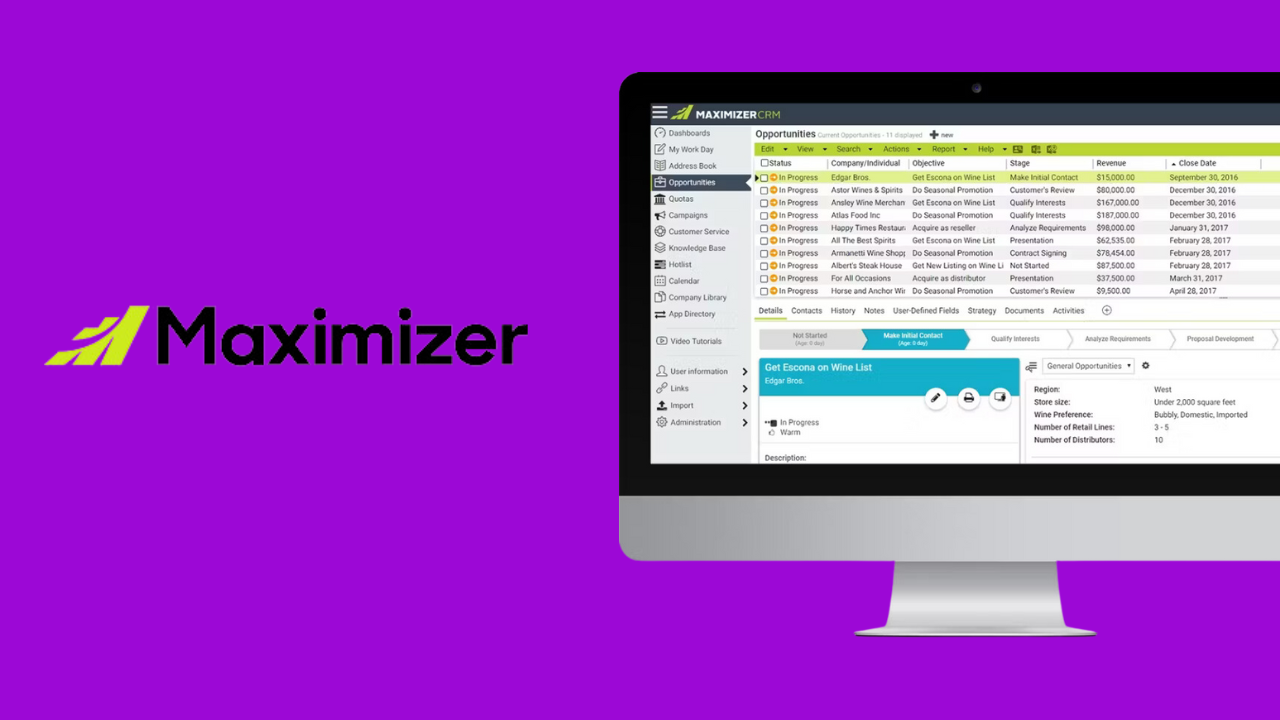
Choosing the right CRM: A practical guide

In todays fast-paced digital world, a reliable CRM system is a necessity for any customer-serving business to be successful. However, choosing a crm that fits the specific needs of your company can be a daunting challenge.

Managing your customer or client lists using Excel spreadsheets, trying to connect the dots between disconnected platforms, or using out-dated and unsupported software, is simply not viable if you want to grow your business!

With so many things to consider when choosing a CRM for your business, including price, customer support and follow-up service, the critical first step is to fully evaluate your specific business needs, and then match those needs to the various offerings that are within your budget.

What We’ll Cover

Learn how to choose the right CRM for your business in this practical guide.

Key CRM Questions to Ask Yourself

The biggest mistake many companies make when selecting a CRM system is focusing first
on vendor reviews, feature differences and price, instead of first identifying and focusing
on their specific needs and business priorities.

Before evaluating CRM vendors and product offerings start by asking these questions
within your leadership team:

  1. What inefficient processes are you trying to improve with a CRM system?
  2. What operational process and workflows are you currently lacking?
  3. Who is going to use the CRM, and how will they use it?
  4. Cloud-based CRM service, or self-hosted on your own premises?
  5. What integrations with your other systems and software do we require?
  6. What is your overall budget?

Only after you reach a consensus on why you need to select a CRM, and your specific
requirements, should you begin discussing specific offerings and evaluating vendors

Cloud CRM or On-Premise Deployment?

With a Cloud-Based CRM Solution, you do not need your own server, or on-site technical
expertise, to install, operate or manage it. You simply log into the cloud-based
CRM using your favorite web browser and you are ready to go. All your client information
resides on the vendors server.

However, you must have an internet connection to access the service. This is no different
than other common cloud services such as Gmail or Netflix.
Most popular cloud CRMs today also have a Mobile CRM app, which enables you to
access your data through your mobile device and cellular network when an internet
connection isnt available, and from anywhere at anytime.

With an On-premises CRM solution, you install the software on your own server, which is
typically based at your location. This option provides direct access to the servers if you
need to integrate with other applications. However, you will need to have in-house
expertise to install and maintain the software, as well as the upfront costs of purchasing
the necessary hardware and operating systems.

Identify Must-Have Features & Functionalities

Your business has unique processes, customer base, and growth dynamics. Committing
to a predefined set of standard, basic or inflexible functions is not a sound choice for longterm success. Look for a customizable CRM that can evolve and grow along with your business.

If a CRM offers different Levels can it be easily upgraded to the next version? What
additional functionality does that provide?


Another consideration is that some CRM software comes loaded with many functions and
features you may never use, but are included to appeal to a wide spectrum of business
use-cases.

Be careful about paying for too many functions you will never need or use.

According to a survey conducted by Software Advice, first-time CRM buyers often
overestimate what features they actually need.


Many SMBs are expecting to pay around $70 to $75 per user per month for a robust CRM
system, but they may be overestimating both their own needs and the price they should pay
for CRM.

Software Advice

This comes back to one of our basic initial questions Who is going to use the CRM? Are
there different needs between user groups in your organization?

An all-inclusive CRM may be a wise choice if it can meet the needs of all your different
user groups, such as Sales, Marketing and Customer Service teams.

Third-Party Integrations


This is one of the most important considerations when beginning the process of choosing
a CRM for your business.


Deploying a CRM should simplify and streamline your business processes, not complicate
them because your other software will not communicate or integrate with your CRM
platform.


You need to ensure that the CRM you select can integrate with all the other
applications you are already using.


In addition to common integrations like Outlook Mail and Excel, your new CRM should
also seamlessly integrate with your accounting software, HR software, and even your
website so forms can import new leads, billing and e-commerce platforms to register
transactions, and of course your marketing and customer service platforms.

Selecting a CRM Provider

Choosing the right CRM for your business is a crucial decision that can impact your customer relationships and overall success. Start by evaluating your specific needs, priorities, and budget before checking out potential vendors and offerings. Ensure that your chosen CRM can easily integrate with your current systems, including your website, billing, and marketing platforms. Look for must-have features and functionalities that can help your teams work more effectively and drive growth.

Taking the time to make an informed decision will help you choose a CRM that simplifies your processes, improves your business operations, and supports your long-term success.

Working From Home Made Easier

Working from home in this new COVID-19 reality, how can companies reduce business disruption and prepare for success when working from home?

We examine key considerations and technological advances that can help you successfully manage this shift and make working from home easier.

Practicalities to Ponder

There has been a growing trend towards flexible and work from home scenarios over the last 5 years but many businesses are still unprepared for full-scale remote working.

So, lets look at some key things to consider when adjusting to working from home.

Of course, not all industries or job roles are suitable for remote work. If your industry isnt one of them, still consider if there is any other work that they can be doing in the short term outside of their normal remit and that can be accomplished in the home environment.
Now is the time to set and communicate clear guidance around work from home policies including sick pay or leave entitlement and the availability of additional Government support.

BALANCED+ Security Operations Center Successfully Attains of SOC2 Compliance

Toronto, Ontario – Nov, 30, 2022  – Demonstrating its commitment to security operations and compliance, BALANCED+ Security Operations Center is proud to announce our recent successful passage of SOC2 Type 1 Compliance – an acknowledgment that we are a leader in the industry. This attests to the organization’s commitment to delivering the highest quality security solutions and services, with a focus on protecting its customers from any potential threats.

The SOC provides cutting-edge managed security services, such as Security Incident and Event Management (SIEM), Security Orchestration, Automation and Response (SOAR), Managed Detection & Response (MDR), and more.

BALANCED+ is also a leader in Fortinet solutions, offering managed FortiAnalyzer, FortiManager, FortiNAC,  FortiAuthenticator, and FortiMail to ensure our customers are always protected.

From 24/7 monitoring and detection of threats to consulting and implementation of security solutions, BALANCED+ Security Operations Center is the perfect partner in security and compliance. We look forward to helping you protect your organization’s data with confidence.

Zita, Commit100, & Secure Links are Amalgamated into BALANCED+

Toronto,Ontario – Dec. 20, 2022 –  We are excited to announce the amalgamation of three companies ZITA Associates Inc, Kirnichansky & Associates Inc dba COMMIT100, and World in a Pocket Corporation dba SECURELINKS under a new name BALANCED+ INC.

This amalgamation takes effect on February 1, 2023.

BALANCED+ will continue providing you with excellent IT consulting services with a larger workforce. Our joint team will deliver expertise in the following areas:

  • IT Management, Governance, and Project Management
  • Enterprise Software Development
  • IT Engineering & Infrastructure Management
  • Data Analysis, BI, AL & ML
  • Business Systems (ERP, MRP, CRM, CAD/CAM, etc.)
  • Cyber Security
  • IT Technical Support

With a focus on IT consulting services, we will continue to provide a much needed competitive advantage to you by leveraging our vast expertise in your and adjacent industries.

About our new name

Everything is balanced in nature, rain follows drought, winter offsets summer, and this balance remains throughout time. As with nature, we believe in bringing balance to our approach to consulting services. As such, we appropriately named ourselves BALANCED. The PLUS represents the inherent complexity of IT solutions, bringing together engineering, science, business, and management. 

We are excited to continue serving you to the best possible level. 

Merry Christmas and Happy New Year!

Warm regards,

Artemy Kirnichansky, P.Eng., FEC

President

artemy.kirnichansky@balanced.plus

Contact: Artemy Kirnichansky

Phone: (657)-333-33333

Email: Artemy.Kirnichansky@balanced.plus

BALANCED+ Wins Contract with Prince Rupert Port Authority

We are delighted to announce that BALANCED+ Software Development Team has been chosen as the preferred provider for a new software application for Prince Rupert Port Authority! This cutting-edge system, developed by our team, will make it easier than ever before to complete Port Pass applications and credentialing tasks. Congratulations to our dedicated staff who have worked hard in making this a reality!

The Port of Prince Rupert is along British Columbias west coast and is Canadas second-largest container port with half a billion dollars in assets and revenue of approximately 60 million dollars per year. This project will enable the port to improve operational efficiency, increase visibility and better manage risk. The software solution we are providing is designed to automate various processes such as vessel tracking, personnel credentialing, and cargo security checks.

This partnership comes at a time when the entire maritime industry is experiencing tremendous changes due to an increased focus on safety, compliance,  and efficiency. We are proud to be part of this shift in the industry and believe that our software will help Prince Rupert Port Authority remain a leader in maritime safety and compliance.

BALANCED+ was selected as the best software development firm from a competitive pool of Canadian firms due to our specialized experience in building similar applications, an impressive team of developers, and a keen emphasis on streamlining processes.

We are confident that our team is capable of creating a software application to meet the Ports needs and provide an optimal experience for users.

How to Decommission Accounts in Office 365

What happens to an employees mailbox if they no longer work for your organization? Which steps should you take if you want to preserve their emails and forward any incoming correspondence to their addresses? In this short tutorial, we will discuss the necessary steps that you need to go through in Microsoft Office 365 for such scenario.

Summary:

  1. Block user access to Office 365.
  2. Block user access to Exchange Online.
  3. Put users mailbox on in-place hold. (optional, works only with Plan 2 licenses)
  4. Preserve data from mailbox by downloading it as PST file from eDiscovery. (Always do that before deactivating a user)
  5. Forward the users email to another address. (optional, only if necessary)
  6. Remove license from user.

Blocking Access to Office 365:

  1. Log in to Office 365 Admin Center.
  2. Go to Users => Active users.
  3. Select the user that you want to block, and then click Edit besides Sign-in status.
  4. Choose Sign-in blocked, and then save.

Blocking Access to Exchange Online:

  1. In Office 365 Admin Center, look at the lower left corner.
  2. Under Admin Centers, click
  3. Go to Recipients => Mailboxes.
  4. Click disable under Email Connectivity, then click yes

Blocking Access to Exchange Online:

  1. In Office 365 Admin Center, look at the lower left corner.
  2. Under Admin Centers, click
  3. Go to Recipients => Mailboxes.
  4. Click disable under Email Connectivity, then click yes

Mailbox Preservation:

  1. Go to Exchange admin center.
  2. Go to compliance management.
  3. Click to create a new hold.
  4. Give it a name, for example: PST Export.
  5. Choose which users to back up; you can select more than one. You can also select everyone if you want to.
  6. You can filter what you want to backup per your specific criteria, or you can back up the whole mailbox.
  7. Press the download arrow icon to run the app that will download the PST file(s).
  8. If you are trying to run the app from Chrome, you will have to install this extension first.

Forward Emails to another Address:

  1. Login to Office 365 Admin Center.
  2. Go to Users => Active Users.
  3. Go to the user that you want to DEACTIVATE.
  4. DELETE their email Alias.
  5. Go to the user you want them to receive emails meant for the user who is going to be deactivated.
  6. Enter the OLD users alias
  7. Example: John no longer works here, his email account needs to be deactivated, but emails meant to him should go to Jane.
    1. Delete Johns alias.
    2. Add same old alias that John used to Janes aliases.

Removing License(s)

  1. Login to Office 365 Admin Center.
  2. Go to Users => Active Users.
  3. Select the user you want to deactivate their license(s)
  4. Click Edit beside Product licenses.
  5. Put the slide(s) of any license(s) you want to deactivate on OFF.
  6. Click on Assign to save changes.
  7. After finishing the clean-up, make sure to go to Billing => Licenses to remove any excess licenses.