Testing your internet speed is crucial for ensuring your network is performing optimally. Fortinets FortiGate makes this process straightforward. In this guide, well walk you through the steps to perform a speed test using both the GUI and CLI methods.
Before we get started, it’s important to ask yourself if you’re using the right FortiGate for your business. Take our quiz to find out:
Struggling To Choose The Right Fortigate?
Take our quick quiz to get a personalized suggestion for your business.
Start Quiz
Step-by-Step Guide for Speed Testing with FortiGate
1. Access the FortiGate GUI
Open your preferred web browser.
Enter the IP address of your FortiGate device in the address bar.
Log in using your admin credentials.
2. Navigate to Network Interfaces
Once logged in, go to the Network section in the main menu.
Click on Interfaces to view all network interfaces.
3. Select the WAN Interface
Identify and select the WAN interface you want to test.
Click on the Edit button (usually represented by a pencil icon).
4. Execute the Speed Test
In the interface settings, look for the Execute speed test option.
Click on it to start the speed test. This will measure your current internet speed.
5. Apply Results
After the test completes, you will see the results displayed.
Click on Apply results to update the estimated bandwidth fields with the new data.
6. Verify Connection to FortiGuard
Ensure your FortiGate device is connected to FortiGuard.
Verify that it can reach the AWS or Google speed test servers. This is crucial for accurate results.
7. Easy Access to Results
Test results can be incorporated into the interface’s estimated bandwidth. An SD-WAN network monitor license is needed. The License widget and the System -> FortiGuard page will show the status of this license.
Advanced Users: CLI Method
For those comfortable with command-line interfaces, the CLI method offers more control and flexibility.
1. Configure Speed Test Settings
Open your CLI and enter the following commands to configure the speed test settings:
config system speed-test-setting
   set latency-threshold 60
   set multiple-tcp-stream 4
end
2. Ping the Closest Test Server
Before running the speed test, ping the closest test server to ensure connectivity:
execute ping <server_ip>
3. Run the Speed Test
Execute the speed test command to measure your internet speed:
execute speed-test
The results will display transfer rates and latency, giving you a comprehensive view of your network performance.
Conclusion
Regularly testing your internet speed with FortiGate helps maintain optimal network performance and troubleshoot any connectivity issues. Whether you prefer the GUI or CLI method, FortiGate provides the tools you need for accurate speed testing.
Need help managing your firewall? Get in touch with us
Copilot Pro is a versatile tool designed to empower businesses of all sizes and industries. By automating tasks, improving efficiency, and offering valuable insights, Copilot Pro can transform the way you work. In this tutorial, we’ll guide you through specific prompts and use cases that showcase the full capabilities of Copilot Pro. By leveraging these insights, you can streamline your business operations and achieve new levels of success.
In this tutorial, we’ll provide you with:
Specific prompts: Learn how to craft effective prompts to get the most out of Copilot Pro.
Best practices: Discover proven techniques to maximize the benefits of your Copilot Pro subscription.
Real-world use cases: Explore practical examples of how Copilot Pro can be applied to various business scenarios.
By the end of this tutorial, you’ll be equipped with the knowledge and skills to harness the full power of Copilot Pro and drive your business forward.
Tips and Tricks Copilot in Office 365
Using Prompts in Microsoft Teams
Microsoft Teams has become the central hub where companies collaborate, communicate, and innovate. From quick chats to virtual meetings, Teams is where work gets done. But with the sheer volume of conversations and information flowing through Teams, it can be challenging to stay organized and on top of everything.
That’s where these Microsoft Teams prompts come in. By leveraging the power of AI, these prompts can help you get the most out of your Teams conversations, streamline your workflow, and make collaboration more efficient.
1.”Summarize the last meeting”
Purpose: Quickly get a summary of the key points and decisions made in the last meeting. This helps you catch up on what was discussed and ensures you’re up-to-date with the latest information.
How to Use:
Open Microsoft Teams and navigate to the meeting chat or notes.
Use the prompt “Summarize the last meeting” to generate a concise summary of the key points and decisions.
Review the summary to ensure it captures the essential information.
Tips and Tricks:
Use this prompt when you have missed a meeting or need a quick refresher on what was discussed.
Combine this with other prompts like “Create a to-do list based on this meeting” to streamline your meeting follow-up process.
2.”Create an agenda for the [meeting]”
Purpose: Generate a detailed agenda for your upcoming meeting. Specify the topics you want to cover to ensure your meetings are well-organized and focused.
How to Use:
Open Microsoft Teams and navigate to the meeting chat or calendar.
Use the prompt “Create an agenda for the next meeting” and specify the topics you want to cover.
Review and edit the generated agenda to ensure it includes all necessary points.
Tips and Tricks:
Use this prompt to ensure your meetings are structured and productive.
Share the agenda with attendees in advance to give them time to prepare.
3.Recap the last 7 Days of Messages
Purpose: Generate a high-level view of the messages youve received in the last 7 days in teams. Ensure you didnt miss important messages
How to use:
Open teams and navigate to the copilot icon
Use the prompt: Generate chat highlights for the last 7 days
Either specify specific associates using the / function or get a general recap from everybody
Tips and Tricks:
Use this prompt if you havent been active on teams or youve missed many chats because youve been out of office
Use this to catch up with conversations and respond to associates you havent had the time to respond to.
4.What do I have Coming up this week?
Purpose: Get a high-level view of what meetings, events, and tasks you must focus on for the week
How to use:
Open teams and navigate to the copilot icon
Use the prompt: What do i have coming up this week
Either specify specific associates using the / function or get a general recap from everybody
Tips and Tricks:
Share insights with relevant parties to ensure theyre prepared for shared events and due dates
5.”Find recent updates on [project name]”
Purpose: Gather the latest information and updates on a specific project to stay informed and prepare for project-related discussions.
How to Use:
Open Microsoft Teams and navigate to the project chat or channel.
Use the prompt “Find recent updates on [project name]” to gather the latest information.
Review the updates to stay informed about the project’s progress.
Tips and Tricks:
Use this prompt to quickly get up-to-date information on ongoing projects.
Combine this with other prompts like “Summarize the last meeting” to get a comprehensive understanding of the project’s status.
6.”Create a to-do list based on this meeting”
Purpose: Generate a to-do list from the action items discussed in a meeting to keep track of tasks and deadlines.
How to Use:
Open Microsoft Teams and navigate to the meeting chat or notes.
Use the prompt “Create a to-do list based on this meeting” to generate a list of tasks.
Review and organize the to-do list to prioritize your tasks.
Tips and Tricks:
Use this prompt to stay organized and ensure you don’t miss any important tasks discussed in meetings.
Combine this with calendar reminders to keep track of deadlines and follow-ups.
7.”Prepare presentation slides for [topic]”
Purpose: Assist in creating presentation slides for a specific topic, saving you time and ensuring your presentation is visually appealing.
How to Use:
Open Microsoft Teams and navigate to the relevant chat or channel.
Use the prompt “Prepare presentation slides for [topic]” and specify the key points you want to include.
Review and edit the generated slides to ensure they meet your needs.
Tips and Tricks:
Specify who agreed in the meeting agreed with the decisions to get a broken down view of the key associates and their thoughts on the decisions made. Maybe only 75% agreed and youre interested in what the other 25% had to say
8.”Set a reminder for [task]”
Purpose: Set reminders for specific tasks or deadlines discussed in a meeting to help you stay organized and on top of your responsibilities.
How to Use:
Open Microsoft Teams and navigate to the meeting chat or notes.
Use the prompt “Set a reminder for [task]” and specify the date and time for the reminder.
Review and confirm the reminder to ensure it’s set correctly.
Tips and Tricks:
Use this prompt to stay on top of important tasks and deadlines discussed in meetings.
Combine this with to-do lists and calendar events to keep your schedule organized.
9.”What Decisions Were Made”
Purpose: Missed a meeting? No Problem, this prompt will get you up to speed on critical decisions made during meetings you may have missed
How to Use:
Open Microsoft Teams and navigate to the meeting chat or notes.
Use the prompt “What decisions were made at /[meeting]
Review and confirm the reminder to ensure it’s set correctly.
Tips and Tricks:
Use this prompt to stay on top of important tasks and deadlines discussed in meetings.
Combine this with to-do lists and calendar events to keep your schedule organized.
10.”Get Action Items from [Meeting]”
Purpose: If you didnt take notes during meeting, or forget some of the action items, organize your to-do list by creating an to-do list from a specific meeting
How to Use:
Open Microsoft Teams and navigate to the meeting chat or notes.
Use the prompt “Get action items from /[meeting]
Review and confirm the reminder to ensure it’s set correctly.
Tips and Tricks:
Ensure youre specifying the meeting from which you want the action items created
Use the / to specify both meeting or associate.
By using these prompts effectively, you can enhance your productivity and streamline your meeting management process in Microsoft Teams. If you have any specific tasks or areas you’d like more tips on, feel free to let me know!
These prompts cover the majority of the useful prompts you can use in Microsoft teams, lets move onto to outlook.
Outlook has become an indispensable tool for communication and collaboration. However, the sheer volume of emails we receive can often lead to overwhelm and inefficiency. Thankfully, AI-powered prompts within Microsoft Outlook are here to revolutionize the way we interact with our inboxes. By automating mundane tasks and extracting key information, these prompts empower us to reclaim control over our emails and focus on what truly matters.
1.”Summarize this email thread”
Purpose: Quickly get a summary of the key points and decisions made in an email thread. This is useful for catching up on long email conversations and ensuring you’re up-to-date with the latest information.
How to Use:
Open the email thread you want to summarize.
Use the prompt “Summarize this email thread” to generate a concise summary of the key points and decisions.
Review the summary to ensure it captures the essential information.
Tips and Tricks:
Use this prompt when you have a lengthy email thread and need to quickly understand the main points.
Combine this with other prompts like “Draft a response to this email” to streamline your email management process.
2. “Draft a response to this email”
Purpose: Generate a professional response to an email. You can specify the tone and key points you want to include, and it will help you craft a clear and effective reply.
How to Use:
Open the email you need to respond to.
Use the prompt “Draft a response to this email” and specify the tone (e.g., professional, friendly) and key points you want to include.
Review and edit the generated response to ensure it meets your needs.
Tips and Tricks:
Use this prompt to save time when responding to emails, especially when you need to maintain a professional tone.
Customize the response by adding any specific details or personal touches to make it more relevant.
3. “Schedule a meeting with [person’s name]”
Purpose: Quickly set up a meeting with a specific person. This helps you find a suitable time and send out the meeting invite, saving you time and effort.
How to Use:
Identify the person you need to schedule a meeting with.
Use the prompt “Schedule a meeting with [person’s name]” and specify the preferred date and time.
Review the suggested meeting times and send out the invite.
Tips and Tricks:
Use this prompt to streamline the process of scheduling meetings, especially when coordinating with multiple people.
Include any relevant details or agenda items in the meeting invite to ensure everyone is prepared.
4. “Create a to-do list from this email”
Purpose: Generate a to-do list based on the action items mentioned in an email. This helps you keep track of tasks and deadlines, ensuring nothing is overlooked.
How to Use:
Open the email containing the action items.
Use the prompt “Create a to-do list from this email” to generate a list of tasks.
Review and organize the to-do list to prioritize your tasks.
Tips and Tricks:
Use this prompt to stay organized and ensure you don’t miss any important tasks mentioned in emails.
Combine this with calendar reminders to keep track of deadlines and follow-ups.
5. “Find emails related to [topic]”
Purpose: Search for emails related to a specific topic. This is useful for gathering information and staying informed about ongoing projects or discussions.
How to Use:
Identify the topic you want to search for.
Use the prompt “Find emails related to [topic]” to search your inbox for relevant emails.
Review the search results to gather the information you need.
Tips and Tricks:
Use this prompt to quickly find related emails and stay informed about specific topics or projects.
Combine this with other prompts like “Summarize this email thread” to get a comprehensive understanding of the information.
6. “Draft a follow-up email for [meeting]”
Purpose: After a meeting, draft a follow-up email summarizing the key points and action items discussed. This ensures everyone is on the same page and knows their responsibilities.
How to Use:
Identify the meeting you need to follow up on.
Use the prompt “Draft a follow-up email for [meeting]” and specify the key points and action items.
Review and edit the generated follow-up email to ensure it captures all the necessary information.
Tips and Tricks:
Use this prompt to ensure clear communication and accountability after meetings.
Include any relevant attachments or links to additional resources in the follow-up email.
7. “Set a reminder for [task]”
Purpose: Set reminders for specific tasks or deadlines mentioned in an email. This helps you stay organized and on top of your responsibilities.
How to Use:
Identify the task or deadline you need to set a reminder for.
Use the prompt “Set a reminder for [task]” and specify the date and time for the reminder.
Review and confirm the reminder to ensure it’s set correctly.
Tips and Tricks:
Use this prompt to stay on top of important tasks and deadlines mentioned in emails.
Combine this with to-do lists and calendar events to keep your schedule organized.
Prompts for Office 365
Microsoft 365 has become the cornerstone of productivity, offering a suite of powerful tools to streamline tasks and enhance collaboration. Now, imagine harnessing the capabilities of AI prompts to turbocharge your efficiency even further.
From Word and Excel to PowerPoint and SharePoint, these prompts act as your intelligent assistants, helping you summarize documents, analyze data, create compelling presentations, and organize information seamlessly.
Let’s delve into how these AI prompts can revolutionize the way you work across the Microsoft 365 ecosystem.
Microsoft Word
1.”Summarize this document”
Purpose: Quickly get a summary of the key points and sections in a document.
How to Use:
Open the document in Microsoft Word. Use the prompt “Summarize this document” to generate a concise summary of the key points and sections.
Tips and Tricks:
Use this prompt when you need a quick overview of a lengthy document. Combine this with other prompts like “Create a report on [topic]” to streamline your document management process.
2.”Generate a table of contents”
Purpose: Automatically create a table of contents based on the headings in your document.
How to Use:
Open the document in Microsoft Word. Use the prompt “Generate a table of contents” to automatically create a table of contents based on the headings.
Tips and Tricks:
Use this prompt to ensure your document is well-organized and easy to navigate. Update the table of contents as you add or modify headings.
3.”Rewrite this paragraph for clarity”
Purpose: Improve the clarity and readability of a specific paragraph.
How to Use:
Highlight the paragraph you want to improve. Use the prompt “Rewrite this paragraph for clarity” to generate a clearer version.
Tips and Tricks
Use this prompt to enhance the readability of your document. Combine this with other prompts like
4.Format this document according to company guidelines”
Purpose: Apply your company’s formatting guidelines to the entire document.
How to Use:
Open the document in Microsoft Word. Use the prompt “Format this document according to company guidelines” to apply the formatting guidelines.
BALANCED+ Inc., a renowned provider of innovative IT solutions, proudly announces its latest achievement – being awarded the Task-Based Informatics Professional Services (TBIPS) Supply Arrangement by the Government of Canada. This significant accomplishment underscores BALANCED+ Inc.s commitment to excellence and its capability to supply professional services to the public sector.
As a key player in the TBIPS program, BALANCED+ Inc. is set to offer a comprehensive suite of informatics professional services, ensuring a robust contribution to the IT framework of the public sector. The services include:
Application Services:
Software Architecture and Development
Quality Assurance and Testing
Web Design and Development, including Graphics
Cyber Protection Services:
Security Consultancy and Planning
Methodology, Policy, and Procedures Analysis
Threat, Risk Assessment, and Certification
Network Security and Research
Forensic Computing Specialization
With a solid history of industry success, BALANCED+ Inc. brings to the table a seasoned team dedicated to fostering innovation and operational excellence. Our unwavering dedication to delivering value-driven solutions solidifies our role as a frontrunner in professional services.
The BALANCED+ team eagerly anticipates a fruitful partnership with the Government of Canada, aiming to significantly contribute to the success of pivotal projects and to reinforce the IT infrastructure that serves the Canadian public.
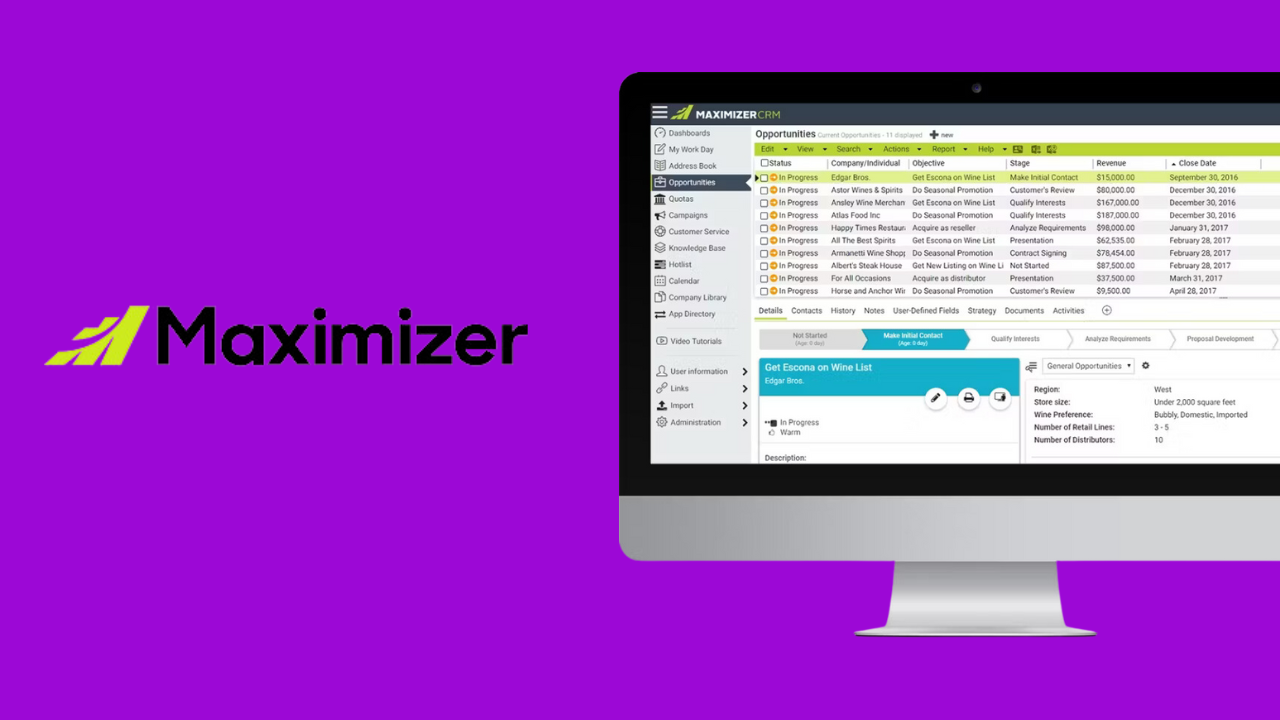
Maximizer, a top-rated integrated customer relationship solution, has just released version 2023.1. It features a fresh new look that includes updated Dashboards, additional customization features, a new Interactions feature that helps you manage customer communications, enhancements to lead management, along with the ability to customize your own campaign.
For more information about Maximizer CRM or this release please contact us at info@balanced.plus.
Owners of Fortinet, industry-leading Next Generation Firewalls will be pleased to hear that the recently released FortiOS comes with a long list of new features including an updated Dashboard, and FortiView. There are also updates to Networking, SSL-VPN Portal, SD-WAN, and ZTNA feature sets.
While not a major release, .x releases provide enhancements rather than fixes which are typical in a .x.y release.
Canadian Tire Corporation operates in the automotive, hardware, sports, leisure, and housewares sectors. Its Canadian operations include Canadian Tire, Mark’s, FGL Sports, PartSource, and Party City.
BALANCED+ was chosen by Microsoft and the client to implement Microsoft Teams as a proof of concept at one of its stores. This store was using a traditional PBX phone system that was proving unreliable and costly to maintain. It was desirable to migrate to Microsoft Teams for its IP-based collaboration, video, and team communication needs.
BALANCED+ has been a Microsoft Sliver Partner since 2018 with specialization in a number of Microsoft applications and tools including the .NET Framework, Visual Studio, SharePoint, Microsoft Azure Stack, Microsoft Web API, and Office 365.
BALANCED+ successfully implemented Microsoft 365 services for the Canadian Tire store including Teams Telephony, Instant Messaging,Shifts, Tasks, Walkie-Talkie, and Meetings.
The proof of concept was successful, and the client now has efficient and reliable store communications complimented by the full suite of Microsoft Teams business tools to keep its operation running at optimum capacity.
Toronto, ON The Prince Rupert Port Authority selected BALANCED+ to build a standalone software application to process security clearances for access to the Port. The Port is in Prince Rupert Harbour in the North Coast Regional District of British Columbia. It is the third busiest seaport in Canada by container volume and cargo tonnage with assets of close to half a billion dollars.
BALANCED+ was chosen as the best candidate for this project based on our expertise with building robust applications on time and under budget.
The Port Authority was administering port passes using a paper-based system that was proving to be inefficient and unable to keep up with the demands of the port. An Online Port Pass system was developed by BALANCED+ to provide a standardized platform for port pass applications and administration, improving the user experience, and increasing the efficiency of the pass application process.
The client was very satisfied with the final product and the software is now fully integrated into PRPAs online platform.
Toronto, ON BALANCED+ has been awarded a multi-year contract for software development services for the Canadian federal government. The work will be carried out for a division of CMHC and will involve bothmaintenance of existing software applications and the development and improvement of these applications.
CMHC is Canadas largest crown corporation with assets of over CA$250 billion. It provides mortgage liquidity, affordable housing development, and advice to the housing industry.
BALANCED+ prevailed in winning the project against several larger software development firms. The governments evaluation team noted that BALANCED+ was chosen from this competitive field based on our experience with building similar applications, our strong development team, a demonstrated focus on process optimization, and superior testimonials provided by our references.
Congratulations to BALANCED+ for being chosen the most skilled team to work for CMHC!
Microsoft Word has become an essential tool in any office environment. The product has been around for some time, and many features have been developed over the years. Strangely, the majority of users do not use these convenient and effective features.
OurBALANCED+expert has put together a list of some of the most used productivity tips and tricks in Microsoft Word.
Download the Tips and Tricks in PDF format: Commit100-MSWordTipsNTricks
Generate random text with =rand(8,10) (and press Enter)
Fast text selection and navigation
To select an entire paragraph, make three fast clicks anywhere inside the paragraph.
Ctrl + Click selects the sentence.
To select all the text in a paragraph before or after the cursor, press Ctrl + Shift + ? or ?.
To select text in the paragraph by word, before or after the cursor, press Ctrl + Shift + ? or ?.
To select text in the paragraph by symbol before or after the cursor, press Shift + ? or ?.
To navigate through text by word, Ctrl + Shift + ? or ?.
To navigate through text by paragraph, Ctrl + Shift + ? or ?.
To select all the text in a document, Ctrl+A.
Easy text alignment. Tab will move the cursor by equal space intervals to the right.
View two copies of the document at the same time:
Go to View tab > Split View
Move the divider between the two views to change the size of each.
Copy and Paste Text:
To copy text, select the text and Ctrl+C.
To paste text, select where to paste and Ctrl+V.
To cut text, select the text and Ctrl+X.
Undoing actions after accidentally doing something, perhaps several steps ago. There is (as far as I know) no limit on how many actions you can undo / redo:
To undo an action (step backward), Ctrl+Z.
To redo an action (step forward), Ctrl+Y.
To automatically format text as heading of different levels, use the built-in heading templates in HOME tab, Styles area:
Simply place the cursor on the text you want to format, and select the style you wish to apply.
To preview the style without applying, simply hold the mouse over the style block.
Finding and replacing text:
To find text, press Ctrl+F and type the text you need to find, then Enter.
To replace a number of reoccurring words / word combinations, Ctrl+H.
Spelling check:
Spelling check is enabled by default, and it uses zig-zag underlines to mark text that has spelling mistakes.
To run through all the spelling mistakes, press F7.
You can choose to ignore or replace a misspelled word.
Inserting tables
Go to Insert > Table > Select the number of Rows and Columns you need.
Type + then Tab multiple times (depending on the number of rows/columns you need) and press Enter.
Insert Table of Contents:
Go to References > Table of Contents > Select one of the automatic tables.
To update the table after you make changes to the document, click anywhere in the table and press F9.
Text Formatting.
To make a word subscript, Ctrl and +, To make a word superscript, Ctrl and Shift and +
To increase font size, use Ctrl and Shift and >, to decrease font size, use Ctrl and Shift and <
To make a word bold, underlined, italic Ctrl+B, Ctrl+U, Ctrl+I, respectively.
Easy converting /saving to PDF using Words built-in features.
File > Save As > From the dropdown, select the PDF file format.
File > Print > Select the printer Microsoft Print to PDF.
In conclusion, Microsoft Word is an essential tool for anyone who needs to create and edit documents. By using the tips and tricks outlined in this article, users can save time and streamline their workflow. Whether it’s mastering keyboard shortcuts, customizing the interface, or using advanced formatting features, there are plenty of ways to make Word work for you. With a little practice and experimentation, users can become proficient in Word and take advantage of its full range of capabilities.
Technology Business Management (TBM) is a value-management framework instituted by CIOs, CTOs and other technology leaders. Founded on transparency of costs, consumption, and performance, TBM gives technology leaders and their business partners the facts they need to collaborate on business-aligned decisions. Those decisions span supply and demand to enable the financial and performance tradeoffs that are necessary to optimize run-the-business spending and accelerate business change. The framework is backed by a community of CIOs, CTOs and other business leaders on the Technology Business Management Council.
While TBM applies common business management practices to IT ones that have defined the modern, data-driven enterprise it also represents nothing less than a business revolution in IT. As Brian Adams, CIO of WorleyParsons put it, TBM represents the first real change to the way IT is managed thats occurred during my 25-year career. Everything else has been evolutionary; TBM is revolutionary. Adams viewpoint and his passion for TBM, have been shaped by his somewhat unique perspective. His career actually spans roles far beyond IT, including CFO, strategy and development, marketing, product quality, and customer satisfaction.
IT is not the first domain to undergo a similar revolution. In the 1970s and the 1980s, manufacturers implemented a data-driven approach to optimize their supply chains from procurement through production. For the first time, they used technology to connect supply to demand, in turn reducing inventories, cutting production times, and improving margins. Manufacturing resource planning (MRP), as this method was known, led to new manufacturing techniques, such as just-in-time (JIT) inventories and total quality management (TQM). MRP was a game changer, and it gave birth to todays enterprise resource planning (ERP) software.
Figure 1: Applying MRP & ERP, manufacturers used technology and data to manage their supply chains
More recently, marketing departments have made similar changes. Just a decade ago, they were led by brand-savvy, creative leaders who made only gut-check decisions based on a knowledge of their products, buyers, and competitors. Marketing was a battle of wits, not data. Now, many chief marketing officers (CMOs) apply data to every aspect of their discipline. Using marketing automation tools and analytics, CMOs are working hard to connect every part of the marketing supply chain from website inquiries to qualified leads to active opportunities to closed deals. Many CMOs understand the conversion rates and costs at each stage of this supply chain, which they call the revenue engine. They continuously optimize that engine using data. Marketing is today quickly becoming as much science as it is art.
Figure 2: With marketing automation & CRM, CMOs use data to manage and tune their revenue engines to improve corporate returns.
Managing the Supply and Demand of IT
Now its your turn. IT must use facts to answer important questions about its own supply chain: How are your resources (money, people, and time) spent to deliver towers of infrastructure and other technologies? How are those resources used to deliver projects? How are your towers cobbled together into applications and services? How are those apps and services consumed by your business partners to generate revenue and manage costs? If you can make these connections, you can make decisions that improve efficiency, grow return on capital, and add business value. Further, you can change the conversations you have with your business partners.
Figure 3: With TBM, CIOs manage the supply and demand of IT
As with the marketing supply chain, you can look at yours in reverse. You can see precisely how business demand drives the cost of your apps and services, and in turn, you can identify the consumption of infrastructure towers and resources. This is powerful information. Not only does it help you create a financial plan based on how resources are actually allocated and consumed, it connects everything your people do to business outcomes.
Early TBM Successes
It is no coincidence that the development of TBM was influenced by someone who understands firsthand the challenges of managing supply and demand. Rebecca Jacoby, SVP of Operations at Cisco, started her career in manufacturing and supply chain roles, and at one point she was responsible for the global consolidation of Ciscos supply chain. After becoming CIO in 2006, she advocated a management approach that addressed both the supply of and the demand for IT. For Jacoby, this went beyond the supply-chain management for only IT. Instead, it would fundamentally change the conversations that she and her team were having with their business partners.
At Cisco, we recognized that in order to drive business value and innovation, we had to become a competitive provider of IT services. This meant, among other things, that we had to change the very conversations we were having internally and with our business partners. Our conversations and our vocabulary needed to move beyond technologies, SLAs and projects, to discussions about the tradeoffs needed to balance cost, quality, and value. Only in doing so could we free up resources for business growth and strategic execution. These tradeoffs are at the core of Technology Business Management.
Rebecca Jacoby, Cisco
Jacoby went so far as to define those value conversations by setting standards for them. They included strategy alignments, IT portfolio planning, architectural reviews, and quarterly value discussions with stakeholders. They centered on value considerations scope, source, architecture, quality of service, time to capability, risk all balanced by a new dimension cost. The result allowed her to align business and IT plans more closely, shape the portfolio of applications and services to meet the businesss needs better, tweak their technology stack to increase performance (even while reducing costs), and shape demand by putting a price tag on consumption. Now, as Chief Operating Officer, Jacoby is putting these practices to work beyond IT.
Still, its not just former CFOs and supply chain leaders who are shaping TBM. Many CIOs who have spent a majority of their careers in IT also are putting their mark on TBM. Larry Godec has spent the majority of his career working in various IT roles much of it as the CIO of First American, a leading provider of title insurance, settlement services, and risk solutions for real estate transactions.
In 2012, with the housing market starting to recover, Godec needed to shift his IT department to respond to the demands of a growing business. Godec recalls in great detail precisely when his TBM journey began a budget meeting with his CEO Dennis Gilmore. Dennis said, Were going to focus on growth. He told me I needed to know where we should be investing in customer-facing technology, because thats what the business will need to compete.
However, with a majority of his budget dedicated to supporting the existing IT estate, Godec needed to figure out how to shift resources quickly without putting the business at risk. He needed to see his resources in business terms, so he could collaborate with his CEO, CFO, and his line of business leaders on where to make the changes.
In a stroke of good timing, Godec heard what he needed to hear at a presentation by Tony Scott, then the CIO of Microsoft. I was at Microsoft for a briefing by Tony when he showed this dashboard I had never seen. For the first time, I saw someone who put IT costs, resources, and investments into terms I could easily explain by the applications and technologies that the business was using.
Godec now saw the way to put everything he did into business terms. Godecs first pass at TBM helped him create a simple portfolio view of the IT-business landscape, so he could have informed discussions about which apps and services were being consumed and by whom; how much he was spending on each of his major applications; and how much he needed to spend to support each line of business.
These facts led to several revelations about their portfolio. Many of the insights helped lead to cost reduction, while others led to the opposite conclusion. For example, by seeing for the first time the percentages of total spending on their app portfolio, they could justify increased investment in customer-facing technologies.
Other insights came in rapid succession, such as identifying end-of-life applications that were still consuming infrastructure and resources. In the end, these insights added up to significant budget savings and reallocations to more valuable purposes. Godec knew there were more, so he put his team on the hunt for new discoveries. His goal? Significantly reduce annual operating costs without reducing the quality of service and support. His team of only two people, mostly in their spare time, exceeded this goal in just a few months.
This is an important lesson. TBM isnt necessary because IT is too expensive. Instead, its needed because your resources are in short supply. IT budgets of course never satisfy everything your business wants; but the real problem is that skilled people are hard to find and your business competitive clock is ticking faster and faster. You cant afford to waste people or time. IT may represent less than a tenth of your business cost structure, but it is inextricably linked to your ability to compete, serve your customers, and reduce those business costs. Your IT capital must thus be invested wisely to create the most value.
AI Chatbot
Online
Hi! I'm the BALANCED+ assistant. Ask me anything about our managed IT or cybersecurity services — or I can help you figure out if we're the right fit for your business.
Submit a Support Ticket
What happens after you submit
We receive your ticket instantly
Your request hits our queue the moment you submit — no delays, no middlemen.
A technician reviews your issue
Our help desk team assesses priority and assigns the right technician for your issue type.
15-minute response on critical issues
You'll hear from us fast. Critical issues are responded to within 15 minutes — guaranteed by SLA.
Remote or on-site resolution
We resolve most issues remotely. If we need to come to you, we'll schedule a visit same day.